
In digital design, you’ll constantly see two terms: vector graphics and raster graphics. If you don’t understand the difference vector vs raster graphics, you can easily end up with blurry logos, huge file sizes, or graphics that just don’t look right.
This guide explains, in simple language, how vector and raster graphics differ, when to use each type, and how they fit into modern graphic & design software workflows so you can make the right choice every time.
What Are Vector and Raster Graphics?
What Are Raster Graphics?
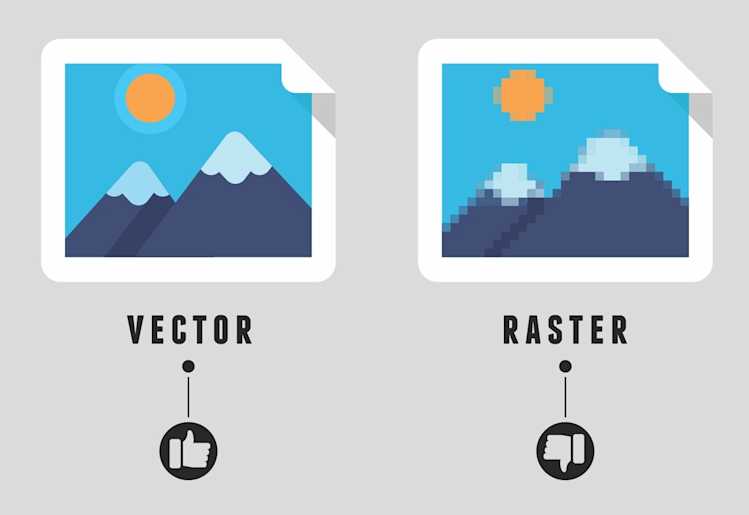
Raster graphics (also called bitmap graphics) are made of pixels — tiny coloured squares arranged in a grid. Every photo on your phone or camera is a raster image.
Common raster formats:
- JPG / JPEG
- PNG
- GIF
- BMP
- TIFF
Raster graphics are perfect for:
- Photographs
- Detailed textures
- Complex scenes with shadows, light, and gradients
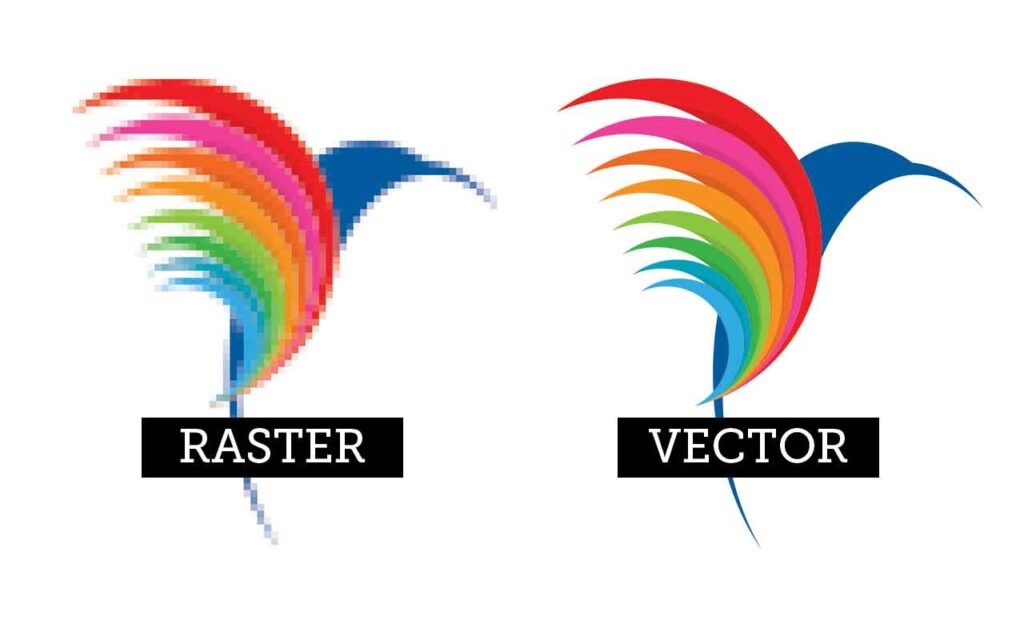
If you zoom in closely on a raster image, you can actually see the individual pixels. That’s why when you stretch a small raster image too far, it becomes blurry or pixelated.
What Are Vector Graphics?
Vector graphics are made from mathematical paths rather than pixels. They use:
- Points
- Lines
- Curves
- Shapes
These are all defined by formulas. Because of this, vector images can be scaled to any size without losing quality.
Common vector formats:
- SVG
- AI (from some design tools)
- EPS
- PDF (can contain vector elements)
Vector graphics are best for:
- Logos and icons
- Simple illustrations
- Infographics
- Diagrams
- Typography-based designs
You can zoom in as much as you like on a vector logo and it will always stay completely sharp.
Key Differences Between Vector & Raster Graphics
1. How They’re Built
- Raster
- Built from fixed pixels in a grid
- Every pixel stores its own colour
- Great for realistic scenes and photos
- Vector
- Built from paths and shapes
- Defined by mathematical formulas
- Great for clean shapes, logos, and icons
2. How They Handle Resizing
- Raster images are resolution-dependent.
- If you enlarge them beyond their original size, they often become blurry or blocky.
- Example: A small 400×400 logo looks terrible if printed on a large banner.
- Vector images are resolution-independent.
- You can scale them from a tiny icon to a billboard and they stay sharp.
- This is why logos and icons should always be created as vectors.
3. File Size and Performance
- Raster files can get very large, especially at high resolution (e.g., big photos).
- Vector files are often smaller for simple artwork, because they store formulas, not every pixel.
However, very complex vector illustrations can still become heavy — but for most beginners, vectors stay compact and easy to manage.
4. Editing and Use Cases
- Raster editing is perfect when you need to:
- Retouch photos
- Adjust lighting and colours
- Add textures or special effects
- Create realistic composites
- Vector editing is perfect when you need to:
- Draw logos and icons
- Create flat illustrations
- Make maps, diagrams, and infographics
- Build UI elements for software and apps
Benefits of Vector Graphics
Resolution Independence
The biggest advantage of vector graphics:
They stay sharp at any size.
This makes them ideal for:
- Brand logos
- Icons used across web, app, and print
- Charts and illustrations that may be reused in different contexts
You never have to redraw your logo at a bigger size — you just export it again.
Easy Shape and Colour Editing
Because vector images are built from shapes:
- You can change colours instantly
- You can tweak curves and corners easily
- You can move and resize elements without losing quality
This makes vector graphics extremely flexible for iterative design.
Clean, Modern Aesthetic
Modern brands and tech companies love vector-based looks:
- Flat illustration styles
- Simple icons and line art
- Minimalist UI elements
Vector graphics are naturally suited to this clean, modern style.
Benefits of Raster Graphics
Photorealistic Detail
Raster graphics shine when you need realism, such as:
- Portraits and product photos
- Landscapes
- Detailed textures (wood, metal, fabric)
- Light and shadow effects
Because each pixel can be individually controlled, raster images can represent subtle visual details that vectors can’t match easily.
Powerful Photo Editing
Photo-editing software (raster-based) lets you:
- Remove blemishes and distractions
- Adjust exposure, contrast, and colour grading
- Blur backgrounds
- Combine multiple photos into one
If your content relies heavily on photography, raster tools are essential.
Perfect for Web and Social Media Images
Most blog images, social posts, and thumbnails are exported as JPG, PNG, or WebP — all raster formats. Even if you design some parts in vector, you’ll usually export the final version as a raster image for uploading.
When to Use Vector vs Raster (Practical Guide)
Use Vector Graphics When:
- You’re designing a logo or brand mark
- You need icons and UI elements
- You’re making infographics or diagrams
- Your design needs to be printed at many sizes
- You want crisp lines and flat colours
Examples:
- A logo for your AI tools blog
- A set of icons for a software dashboard
- A simple illustration explaining how a tool works
Use Raster Graphics When:
- You’re editing or enhancing photos
- You’re building YouTube thumbnails
- You want detailed, textured images
- You’re working with complex lighting and gradients
- Your design is mainly photographic
Examples:
- Product photos on a sales page
- Lifestyle images for blog posts
- Social media images with photo backgrounds
Step-by-Step Beginner Guide: Choosing the Right Type
Step 1: Decide What You’re Designing
Ask yourself:
- Is this mostly a shape or logo? → Vector.
- Is this mostly a photo or realistic image? → Raster.
Once you answer that, you’ve already made the biggest decision.
Step 2: Check Where It Will Be Used
- Needs to be displayed at lots of sizes (website, print, banner)? → Vector source file.
- Used primarily at one size (single blog post image)? → Raster is usually fine.
Step 3: Pick the Right Software Tools
Many designers use a combination of:
- Vector design software for logos, icons, and illustrations.
- Raster/photo editing software for photos and detailed images.
- Layout tools for combining everything into pages, slides, or marketing materials.
Understanding how vector & raster graphics differ helps you pick the right software tools and not fight against the wrong type of file.
Step 4: Choose the Correct Export Formats
In general:
- Vector logos/icons → Export as SVG, EPS, or high-res PDF.
- Web images, blog graphics, thumbnails → Export as JPG/PNG/WebP (raster formats).
- Print materials → Often use a mixture: vector elements plus high-res raster photos inside a PDF.
Step 5: Practice with a Simple Project
Try this simple exercise:
- Create a logo in vector format.
- Export it as SVG and PNG.
- Place the PNG on a photo background in a raster editor.
- Export the final image for your blog.
This small project shows you exactly how both formats work together in a real-world workflow.
Real-Life Examples of Vector & Raster Working Together
Example 1: Branding for a Small Business
- The logo and icon set: Vector
- Product photos and banners: Raster
- Business cards and brochures: Layout tool using both vector and raster assets.
Example 2: Blog Post About Software Tools
- Featured illustration explaining the concept: Vector illustration exported as raster (e.g., PNG).
- Screenshots of software: Raster images.
- Button icons or badges: Designed as vectors, exported as PNG or SVG.
Example 3: Online Course Materials
- Course logo and icons: Vector
- Slide backgrounds and illustrations: Mix of vector and raster
- Downloadable PDF worksheets: Use vector diagrams and raster images together.
Tips for Beginners
- Remember the rule of thumb:
- Photos → Raster
- Logos/icons → Vector
- Start simple. Avoid complex effects until you’re comfortable with the basics.
- Use templates when your software offers them — they’re great for learning layouts.
- Limit fonts and colours for cleaner, more professional results.
- Always keep a vector version of logos and key graphics, even if you export them as raster for web use.
Common Mistakes to Avoid
1. Designing Logos Only as Small Raster Files
Creating a logo only as a 500×500 JPG is a big mistake. It will look blurry on large screens or print. Always design logos as vectors first.
2. Stretching Small Raster Images Too Much
If you download a small image and stretch it to full-screen, it will become pixelated. Always:
- Check the original dimensions
- Use larger source images when you need big graphics
3. Using the Wrong File Format for the Job
- Sending a JPG logo to a printer may cause quality issues.
- Embedding a huge uncompressed photo into a web page slows things down.
Choose formats intentionally based on where the image will be used.
4. Expecting Photo-Quality Detail from Vector Tools
Vector tools are not meant for photo-level texture and detail. For that, you need raster software. Use each type of tool for its strengths.
5. Ignoring Resolution and DPI
For web, pixel dimensions matter more than DPI.
For print, both resolution and DPI (usually 300 DPI) are important. Raster images with low resolution will always print poorly.
Advanced Insights (When You’re Ready to Go Deeper)
Hybrid Designs
Most professionals combine both:
- Vector elements: logos, icons, illustrations
- Raster elements: photos, textures, backgrounds
They work together inside your design projects, especially in:
- Marketing materials
- Website graphics
- Presentations
Vectorizing Raster Artwork
If you have an old, low-quality raster logo, sometimes you can convert (trace) it into vector. This works best for:
- Simple shapes
- Limited colours
- Clear edges
It’s a useful technique, but it doesn’t magically turn photos into clean vectors.
Optimising for Web vs Print
Understanding vector vs raster helps you:
- Optimise images for fast-loading web pages
- Supply printers with the correct files
- Maintain quality across devices and platforms
Conclusion
Knowing how vector and raster graphics differ is a foundational skill for anyone using graphic & design software.
- Vector graphics: built from paths, infinitely scalable, best for logos, icons, and clean illustrations.
- Raster graphics: built from pixels, best for photos and realistic visuals, sensitive to resolution.
Once you understand which format to use for each job, your designs become:
- Sharper
- More professional
- Easier to reuse and repurpose
From logos and branding to blog graphics and social media content, choosing the right type — and combining them wisely — will make every project smoother and higher quality.
Frequently Asked Questions
Neither is “better” overall. Vector is better for logos, icons, and scalable graphics. Raster is better for photos and detailed, realistic images. Most designers use both.
It’s likely a small raster file. When you scale it up, the pixels stretch and look fuzzy. You need a vector version or a larger high-resolution raster version.
Yes. You can use SVG for logos and icons, which stay sharp on all screens. Many modern websites rely heavily on SVG graphics.
Try zooming in. If it becomes pixelated, it’s raster. If it stays smooth and sharp, it’s vector. File extensions also help: SVG/EPS/AI are vector; JPG/PNG/GIF are raster.
If you want to be confident in design, yes. Even basic knowledge of both vector and raster will massively improve the quality of your graphics and your workflow.

Zahid Ali focuses on reviewing AI tools, marketing software, and funnel systems. His reviews break down real-world use cases, setup difficulty, pricing structures, and who each product is best suited for.