
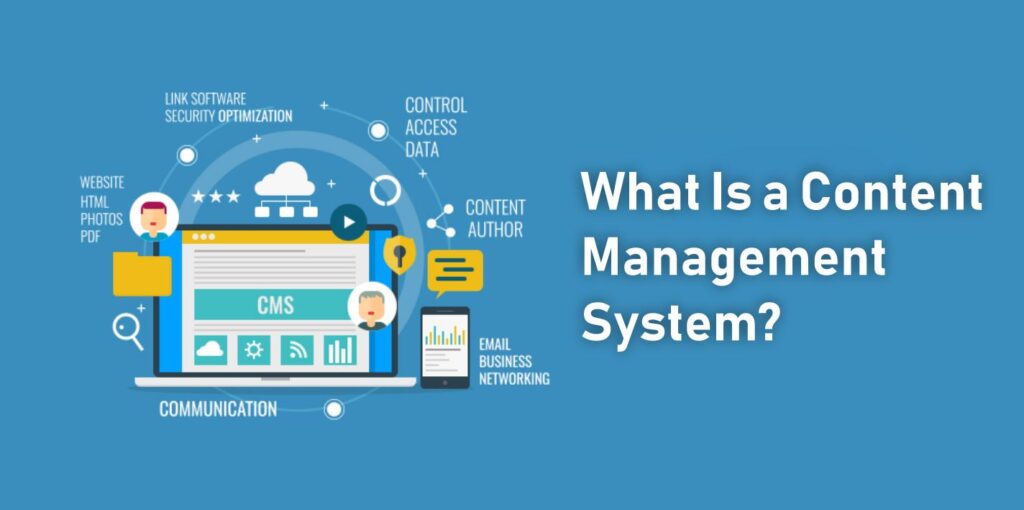
If you’ve ever tried to build or update a website and thought, “This is way too technical for me,” you’re exactly the kind of person content management systems were made for. Years ago, you needed coding skills just to change text or add an image on a site. Today, thanks to CMS platforms, you can publish pages, blog posts, and even full online businesses with minimal tech knowledge.
But what is a content management system, really? And how does it fit into the world of AI tools, software tools, and making money online?
In this plain-English guide, we’ll walk through what a content management system (CMS) is, how it works behind the scenes, why it matters for creators and marketers, and how to choose one that fits your goals—even if you’re not “technical.”
What Is a Content Management System?
A content management system (CMS) is software that lets you create, manage, and publish content on a website without needing to write code from scratch.
In simple terms:
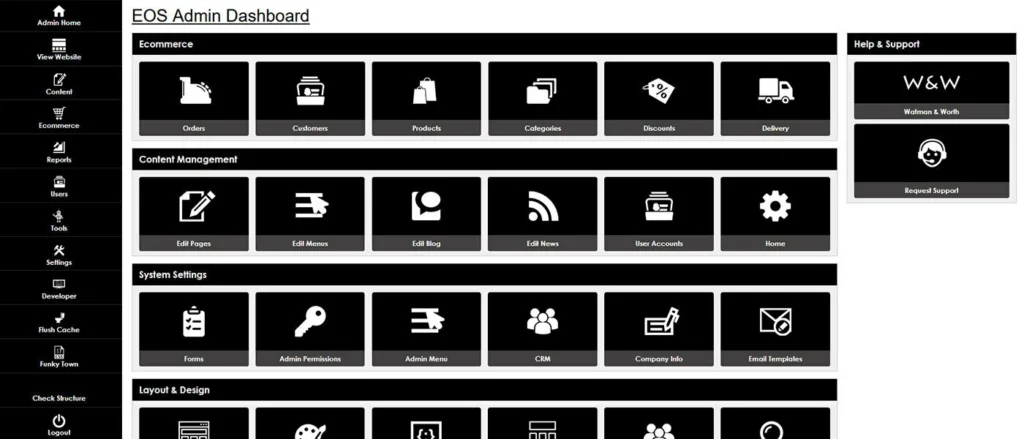
A CMS is the “control panel” for your website that lets you add and update pages, blog posts, images, menus, and more—using a user-friendly interface instead of raw HTML and CSS.
With a CMS you can:
- Write and format blog posts
- Create new pages (About, Contact, Landing pages, etc.)
- Upload images, videos, and files
- Organize content into categories and tags
- Control navigation menus
- Manage users and permissions
All of this happens in a browser-based dashboard, often with familiar editor tools like bold, italics, headings, bullet points, and drag-and-drop sections.
How a Content Management System Works (Simple Breakdown)
Even though a CMS feels simple on the surface, there’s a lot happening behind the scenes. Let’s break it down into understandable parts.
1. The Content Editor (What You See)
This is the part you interact with:
- A visual editor where you type and format content
- Buttons to add images, headings, lists, and links
- Options to assign categories, tags, and featured images
- Publish controls like Draft, Schedule, and Update
It feels similar to writing in a word processor, but everything is being saved into a website-friendly format.
2. The Database (Where Content Lives)
Under the hood, a CMS uses a database to store your content:
- Page text
- Post titles, bodies, and metadata
- Category and tag relationships
- User accounts and permissions
You don’t see the database directly; the CMS handles all the communication. When you save or update a post, the CMS stores the data in the database. When a visitor lands on your site, the CMS pulls the right content back out and displays it.
3. The Theme or Template (How It Looks)
Your content (text, images, metadata) is separate from your design. The design is controlled by:
- Themes or templates that define layout, colors, fonts, and structure
- Page templates for blog posts, category pages, home page, etc.
This separation means you can:
- Change how your site looks without rewriting every piece of content
- Keep a consistent look across hundreds of posts and pages
- Use pre-built designs tailored to blogs, stores, portfolios, etc.
4. Plugins/Extensions (Extra Features)
Most modern content management systems use plugins, add-ons, or extensions to add functionality, such as:
- SEO optimization tools
- Contact forms
- Caching and performance tools
- Membership systems
- Page builders
- Ecommerce features
Instead of coding custom features from scratch, you can often install a plugin, configure a few settings, and you’re ready to go.
5. The Front-End (What Visitors See)
When someone visits your site:
- The CMS receives the request (for a specific URL).
- It loads the correct content from the database.
- It applies the theme/template.
- It sends the final HTML, CSS, and JavaScript to the visitor’s browser.
The visitor just sees what appears to be a “normal website page,” but behind that is your CMS doing all the heavy lifting.
Why a CMS Matters for Creators, Marketers, and Side Hustlers
If you’re building online income streams, affiliate sites, or content-based brands, a content management system becomes the backbone of your digital presence.
Here’s why it matters.
1. You Don’t Need to Be a Developer
With a CMS, you can:
- Launch a professional-looking site
- Publish content consistently
- Make changes on your own schedule
…without hiring developers for every small edit. This is huge for solo creators, freelancers, and small businesses.
2. Faster Content Publishing
When your website runs on a CMS, your publishing workflow becomes much smoother:
- Write in the editor
- Add internal links, images, headings
- Click “Publish” or “Schedule”
No manual file uploads, no hand-writing HTML pages. That speed is crucial if you’re:
- Producing regular blog content
- Publishing reviews and tutorials
- Covering new AI tools or software launches
3. Built-in Organization (Categories, Tags, Menus)
A CMS helps structure your content so users (and search engines) can navigate it easily:
- Categories for main topics (AI Tools, Software Tools, Make Money Online, etc.)
- Subcategories for specific areas (AI Writing Tools, Email Marketing Software, Passive Income & Side Hustles)
- Tags for important concepts or features (automation, beginner guide, tutorial, etc.)
- Menus for your main navigation and footer links
This organization is essential for both user experience and SEO.
4. Easier SEO and Optimization
Many CMS platforms are built with SEO in mind:
- SEO-friendly URLs (your slug and category paths)
- Title and meta description fields
- Image alt text
- Structured headings (H2, H3, etc.)
You can also install plugins that help:
- Analyze keyword usage
- Improve internal linking
- Optimize technical SEO basics
All of this makes it easier to rank for the many semantic keywords and topics you’re targeting.
5. Scales with Your Online Business
As your content library grows, a CMS can handle:
- Hundreds or thousands of articles
- Multiple contributors and editors
- Complex site structures (multiple sections, funnels, resources)
You can start simple and gradually build out:
- Product review hubs
- Bonuses & resources libraries
- Guides & tutorials sections
- Landing pages for specific tools or offers
Common Types of Content Management Systems
Not all CMS platforms are the same. Here are some broad categories (no need to memorize every brand—just understand the concepts).
1. Traditional CMS
These are systems where:
- Content, design, and front-end are tightly integrated
- Everything is managed in a single environment
They’re great for blogs, business sites, and content-driven projects.
2. Headless CMS
A headless CMS separates:
- The content storage and management (the “body”)
- The front-end display (“head”)
In this setup:
- Content is stored and managed in one place
- It’s delivered via an API to multiple fronts (website, app, screens, etc.)
This is more advanced and often used for:
- Larger businesses
- Multi-platform experiences
- Complex, custom front-end designs
3. Ecommerce-Focused CMS
Some content management systems are optimized for online stores, handling:
- Product pages
- Shopping carts
- Payment processing
- Inventory management
They may still have blog features and pages, but their core strength is selling.
4. Website Builders vs CMS
Website builders (often drag-and-drop tools) blur the line with CMS platforms. The main differences are usually:
- CMS: More flexible, scalable, and extensible with plugins and customizations.
- Website builders: More beginner-friendly, all-in-one, but sometimes limited in custom features and control.
For many beginners and side hustlers, a solid CMS gives the best long-term flexibility.
Step-by-Step Beginner Guide: How to Start with a CMS
Let’s walk through a practical, beginner-friendly approach to starting with a content management system.
Step 1: Clarify What You Want Your Site to Do
Ask yourself:
- Are you mainly publishing blog posts and tutorials?
- Do you want to focus on product reviews and affiliate content?
- Are you planning to sell digital products or simple services?
Your goals help you pick the right type of CMS and necessary features.
Step 2: Choose a CMS Platform
Look for a CMS that:
- Supports blogging and pages
- Has strong plugin or extension support
- Is well-documented and widely used
- Plays nicely with SEO and performance optimization
If you’re building a content-rich site like TopReviewsPrint (reviews, guides, resources), a flexible blog-first CMS is usually the best fit.
Step 3: Set Up Your Domain and Hosting
You’ll typically need:
- A domain name (your brand or niche)
- Hosting to store your site and serve it to visitors
Many hosts offer one-click installs for popular CMS platforms, so setup is often a matter of:
- Choosing a plan
- Running an installer
- Logging into your new CMS dashboard
Step 4: Pick a Theme or Template
Choose a theme that matches:
- Your niche (magazine-style, blog, review site, etc.)
- Your content type (articles, reviews, resources)
- Your desired layout (sidebar or no sidebar, hero section, etc.)
You can customize:
- Colors and fonts
- Header and footer layouts
- Homepage sections and featured content
Step 5: Plan Your Site Structure
Before publishing a lot of content, outline your site structure:
- Main categories (AI Tools, Software Tools, Make Money Online, Guides & Tutorials, Bonuses & Resources)
- Subcategories (AI Writing Tools, Email Marketing Software, Passive Income & Side Hustles, etc.)
- Core pages (Home, About, Contact, Privacy Policy, etc.)
Then configure your:
- Menus
- Category archive views
- Internal linking strategy
Step 6: Create Your First Content Templates
Inside your CMS, create standardized formats:
- Blog post template (Intro, headings, internal links, conclusion, FAQs)
- Product review template (Overview, features, pros/cons, who it’s for, FAQs)
- Tutorial template (Steps, screenshots/images, tips, summary)
These templates become the backbone of your digital workflow for publishing.
Step 7: Install Essential Plugins and Tools
Depending on your CMS, add plugins for:
- SEO optimization
- Caching/performance
- Security and backups
- Contact forms and lead capture
- Analytics integration
Optionally:
- Page builders for more flexible design
- Email marketing integrations
- Membership or course delivery tools
Step 8: Publish, Improve, and Scale
Once your CMS is set up:
- Publish your first batch of evergreen content
- Start building internal links between related posts
- Track traffic and engagement via analytics
- Improve headlines, structure, and calls-to-action over time
You don’t need a perfect setup to start; you just need a workable CMS and a plan to publish consistently.
Tips for Getting the Most Out of Your CMS
Treat Your CMS as a Long-Term Home, Not a Temporary Tool
It’s easier to grow a site over time if you stick with one platform and learn it well, instead of constantly hopping from tool to tool.
Create Reusable Systems Inside Your CMS
Use:
- Categories and tags consistently
- Post templates for specific content types
- Reusable blocks for calls-to-action or promos
This turns your CMS into a system, not just a place to stash content.
Keep Performance and Security in Mind
A CMS is powerful, but can get bloated if you:
- Install too many heavy plugins
- Use poorly optimized themes
- Ignore updates and security basics
Focus on:
- A clean, fast theme
- Only the plugins you really need
- Regular updates and basic security practices
Integrate Your CMS with Other Tools
Connect your CMS to:
- Email marketing software
- Analytics and tracking tools
- Social scheduling tools
- Automation platforms
This turns your content management system into a hub for your entire online business.
Common Mistakes Beginners Make with CMS Platforms
Overloading with Plugins on Day One
It’s tempting to install dozens of plugins or add-ons. But:
- Every plugin has a performance cost
- Some can conflict with each other
- Many are unnecessary in the beginning
Start lean. Add new tools only when you have a specific need.
Ignoring Structure and Categories
Publishing random posts with no clear structure can:
- Confuse visitors
- Hurt your SEO
- Make internal linking harder
Plan your categories and subcategories up front—even if you refine them later.
Not Using Headings and Formatting
If you dump large walls of text with no headings, lists, or spacing:
- Readers will leave quickly
- Your content will be harder to skim
- You’ll miss SEO opportunities
Use your CMS’s editor to add:
- H2 and H3 headings
- Bullet/numbered lists
- Bold for key ideas
Forgetting Backup and Security
Your CMS is the core of your online business. Always:
- Use strong passwords and basic security plugins
- Keep your CMS, theme, and plugins updated
- Set up automatic backups through your host or a plugin
Conclusion
A content management system (CMS) is one of the most important tools in the modern digital world—especially if you’re serious about building a content-based business, affiliate site, or make-money-online brand.
Instead of wrestling with code, a CMS lets you:
- Create and organize content
- Control your site’s design and layout
- Install features through plugins and extensions
- Integrate with email, analytics, and other tools
In plain English, think of a CMS as the engine and dashboard of your website. Once you understand it, publishing becomes faster, more consistent, and much easier to scale.
You don’t need to be a developer to use a content management system. Start with:
- A clear goal for your site
- A sensible structure (categories and pages)
- A solid theme
- A small set of must-have plugins
Then focus on what matters most: publishing helpful content that serves your audience and supports your long-term online income goals.
Frequently Asked Questions
Technically, no—you can build a website by hand with HTML files. But for almost everyone who wants to publish regular content, reviews, tutorials, or resources, a CMS makes life dramatically easier. It handles structure, editing, and publishing so you can focus on content and strategy.
No. A content management system can power business websites, online magazines and niche sites, affiliate and review sites, membership and course sites, ecommerce stores, and blogs. Blogs are just one common use case; the same system can also run landing pages, resource hubs, and more.
There is a learning curve, but most modern content management systems are designed to be user-friendly. If you can use a word processor, upload files, and fill out simple forms, you can learn the basics of a CMS. Over time, you’ll get more comfortable with advanced features.
A CMS helps with SEO by creating clean, readable URLs, letting you control titles and meta descriptions, making it easy to apply headings and internal links, and offering SEO plugins or tools to guide optimization. You still need to understand basic SEO strategy, but your CMS provides the structure and tools to implement it.
Yes, but it can be a bit of work, especially for large sites. You’ll need to export content from one system, import it into another, and rebuild design and features. That’s why it’s smart to choose a flexible, well-supported CMS from the beginning, so you have room to grow without constantly migrating.