Graphic design is everywhere: logos, social media posts, posters, website layouts, app interfaces, product packaging, and even the menus you see in cafés. Behind almost every visual you interact with is graphic design software—a set of digital tools that helps designers turn ideas into polished visuals.
If you’re just starting out with graphic & design software, or you’re a content creator trying to understand which software tools matter, this guide will walk you through what graphic design software is, how it works, what you can do with it, and how to choose the right tools for your needs.
Introduction: Why Graphic Design Software Matters Today
In the past, graphic design was done with physical tools: pens, rulers, cutting boards, and printing presses. Today, most design work happens on a computer using specialized graphic design software. These tools have become essential for:
- Building brand identities
- Designing social media content
- Creating marketing materials
- Making website and app interfaces
- Producing infographics, icons, and illustrations
Whether you’re a blogger, marketer, freelancer, student, or small business owner, understanding what graphic design software is will help you work smarter and faster with visuals.
What Is Graphic Design Software? (Simple Definition)
Graphic design software is any digital tool that allows you to create, edit, or organize visual content. Instead of drawing by hand on paper, you work on a screen using:
- Shapes
- Text
- Colors
- Images
- Layers
- Effects
These tools help you design visuals for both print (flyers, posters, business cards) and digital (websites, social media, apps, presentations).
There are three broad types of graphic & design software:
- Vector design software – for logos, icons, illustrations, and scalable graphics.
- Raster (bitmap) editing software – for photos, textures, and detailed imagery.
- Layout & publishing software – for multi-page documents like magazines, eBooks, and brochures.
How Graphic Design Software Works (Beginner-Friendly View)
Graphic design software combines three key elements:
1. Canvas and Artboards
When you open a new file, you see a blank canvas or artboard. This is your digital workspace. You can:
- Set a size (e.g., 1920×1080 pixels for a YouTube thumbnail, A4 page for print).
- Choose orientation (portrait or landscape).
- Add multiple artboards in a single document (e.g., social media carousel posts).
2. Layers and Objects
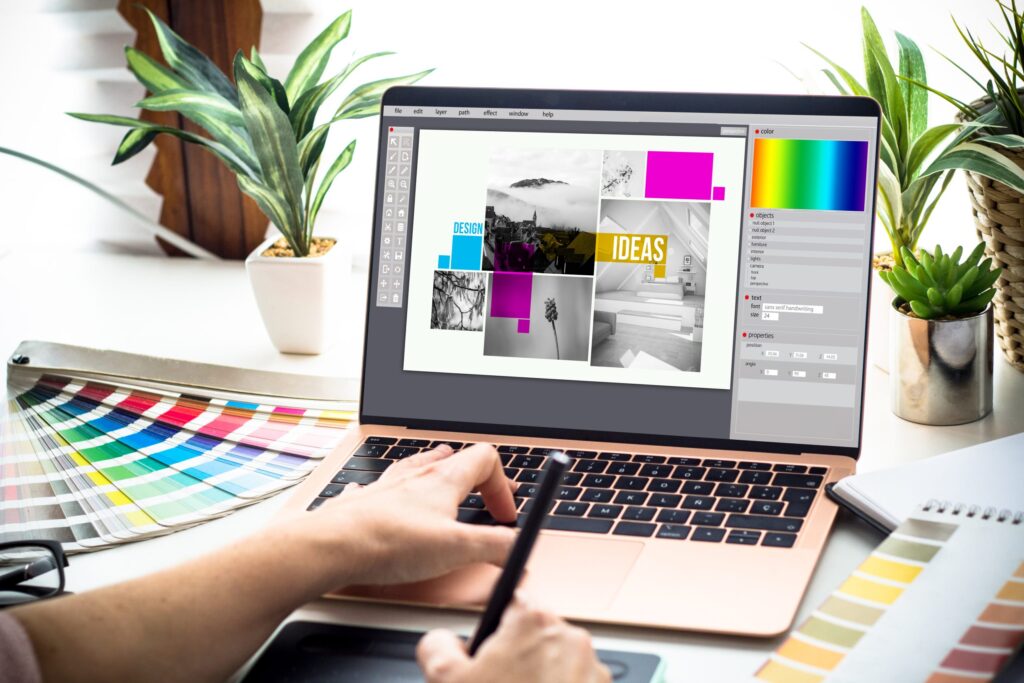
Most graphic & design software uses layers — think of them as transparent sheets stacked on top of each other:
- One layer might have background color.
- Another layer might hold a photo.
- Another has text or icons.
Layers make it easy to move and edit specific elements without breaking everything else.
3. Tools and Panels
Common tools you’ll see in graphic design software:
- Selection tool – move or resize objects.
- Shape tools – draw rectangles, circles, polygons, lines.
- Pen or vector tools – create custom shapes, logos, and icons.
- Text tool – add and style text.
- Brush tools – paint or retouch areas.
- Eyedropper – pick colors from anywhere on the canvas.
Panels help you manage:
- Colors
- Layers
- Typography
- Alignment
- Effects (shadows, glows, gradients, etc.)
Types of Graphic Design Software
1. Vector Graphic Design Software
Vector graphics are made of points, lines, and curves defined by math. That means you can scale them up or down without losing quality.
Best for:
- Logos
- Icons
- Simple illustrations
- Infographics
- UI elements
Key features to look for:
- Pen tool / bezier curves
- Shape builder or pathfinder
- Stroke and fill controls
- Export to SVG, PDF, EPS, PNG
2. Raster / Photo Editing Software
Raster graphics are made of pixels (tiny squares). They’re ideal when you need detailed or photographic content.
Best for:
- Photo editing and retouching
- Thumbnails and banners
- Compositing images together
- Digital painting and textures
Key features:
- Layer-based editing
- Selection and masking tools
- Filters and adjustments (brightness, contrast, color balance)
- Healing/clone tools for fixing images
3. Layout & Publishing Software
Layout tools are designed for multi-page documents and content-heavy designs.
Best for:
- Magazines and books
- Brochures, reports, catalogs
- eBooks and PDFs
Features typically include:
- Master pages and grids
- Paragraph and character styles
- Linked text boxes
- Export options for print and digital
Key Features and Benefits of Graphic Design Software
1. Precision and Control
Graphic design software gives you pixel-perfect control over:
- Alignment
- Spacing
- Typography
- Colors
You can use grids, guides, snapping, and measurement tools to ensure everything lines up perfectly.
2. Reusable Templates and Assets
You can create or download:
- Templates for social media posts
- Brand kits with logo, fonts, and colors
- Reusable components like buttons, icons, badges
This saves time and keeps your visuals consistent.
3. Non-Destructive Editing
Most modern design tools support non-destructive editing:
- You can change text, colors, and effects at any time.
- You can undo, revert, and duplicate versions.
- You can keep your original photo or artwork intact while experimenting.
4. Easy Export for Multiple Platforms
From one design file, you can export:
- Web-optimized JPG/PNG for social media
- SVG for icons and logos
- High-resolution PDF for print
- Assets in multiple sizes for different platforms
5. Collaboration and Cloud Features
Many modern graphic & design software tools offer:
- Cloud storage
- Version history
- Sharing links for preview
- Commenting and feedback
That’s ideal for remote teams, freelance clients, and content creators collaborating online.
Practical Use Cases for Graphic Design Software
1. Branding and Logos
Businesses use graphic design software to:
- Design logos
- Define brand colors and typography
- Create brand style guides
A strong logo and consistent visuals can make even a small brand look professional.
2. Social Media Graphics
For platforms like Instagram, Facebook, LinkedIn, and X, you can design:
- Post templates
- Story backgrounds
- Carousel slides
- Ad creatives
Graphic & design software lets you create once and reuse, changing only text or images.
3. Website and App Design
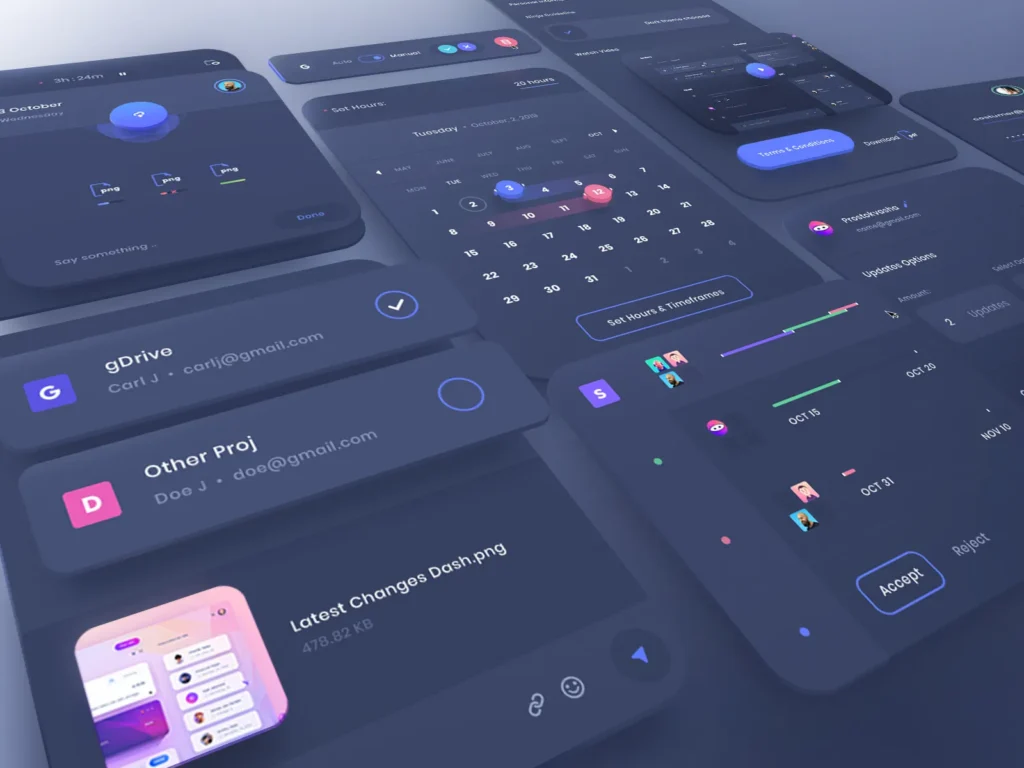
UI and UX designers use design tools to:
- Create wireframes and mockups
- Design buttons, menus, icons, and layouts
- Export assets for developers
4. Print Materials
Designers rely on graphic design software for:
- Flyers and posters
- Business cards and letterheads
- Packaging design
- Restaurant menus and signage
Print-focused tools allow you to manage:
- CMYK color profiles
- Bleed and margins
- High-resolution PDFs for printers
5. Content Creation for Blogs and Courses
If you run a blog or online course, graphic design software helps you:
- Design featured images
- Build diagrams and infographics
- Create downloadable PDFs or worksheets
- Design slide decks and presentation graphics
Step-by-Step Beginner Guide: Getting Started With Graphic Design Software
Step 1: Choose the Right Type of Software
Ask yourself:
- Do I mainly need logos, icons, and simple illustrations? → Start with vector design software.
- Do I need to edit photos, thumbnails, or social graphics? → Start with photo editing / raster software.
- Do I need multi-page documents? → Explore layout and publishing tools.
You can gradually learn all three, but begin with the one that matches your current goals.
Step 2: Learn the Interface
When you first open a graphic design program, it might feel overwhelming. Focus on:
- The toolbar (left or top) – core tools
- The layers panel – manage elements
- The properties or inspector panel – control styles
- The artboard/canvas – your design area
Spend 10–15 minutes just clicking around and seeing what each button does. Most software tools also have tooltips when you hover.
Step 3: Start With a Simple Project
Instead of trying to design something complex, start with:
- A simple logo concept for a fake brand
- A social media post image
- A minimal blog header
Example practice task:
Create a 1920×1080 image with a colored background, your site name in bold text, and a simple vector icon.
This teaches you:
- Creating a new document
- Using shape and text tools
- Choosing fonts and colors
- Exporting your design as PNG or JPG
Step 4: Use Grids and Alignment Tools
Professional designs look neat because designers:
- Align elements carefully
- Use equal spacing
- Follow grids
Turn on:
- Rulers
- Guides
- Snap to grid
This helps you line things up quickly.
Step 5: Work With Layers and Groups
Even simple designs can quickly get messy without layers. Get used to:
- Naming your layers (e.g., “Background”, “Title Text”, “Button”)
- Grouping related elements
- Locking layers you don’t want to move accidentally
Good layer habits make edits much easier later.
Step 6: Export in the Right Format
A common beginner question is: “What file format should I use?”
General tips:
- PNG – for images with transparency or sharp edges (logos, UI elements).
- JPG/JPEG – for photos and full-screen designs where file size matters.
- SVG – for logos and icons you want to scale perfectly.
- PDF – for print or sharing documents.
Tips for Beginners Using Graphic Design Software
- Keep it simple at first. Start with minimal layouts and a limited color palette.
- Use templates. Many tools include ready-made layouts you can customize.
- Study designs you like. Try to recreate simple ads, thumbnails, or posters as practice.
- Learn basic typography. Font choices, size, and spacing matter as much as images.
- Build a small library of assets. Save your favorite icons, shapes, and styles to reuse later.
- Watch your file sizes. Large images can slow down websites—optimize exports for web.
Common Mistakes to Avoid
1. Using Too Many Fonts and Colors
A beginner mistake is throwing every font and color into one design. That usually looks messy.
Try:
- 1–2 main fonts
- 2–3 primary colors
This keeps your design clean and professional.
2. Ignoring Alignment and Spacing
Uneven spacing or misaligned elements make even good ideas feel unprofessional. Always:
- Use alignment tools
- Space elements consistently
- Keep margins around text and images
3. Designing at the Wrong Size
If you design a graphic too small and then stretch it, it becomes blurry. Always:
- Choose the right dimensions before you start
- Use templates when available
4. Forgetting About Export Settings
Exporting at low resolution or with the wrong color profile can ruin print or web quality. For online use:
- Use RGB color mode
- Export at appropriate resolution (e.g., 72–150 DPI is often fine for web)
For print:
- Use CMYK if your software supports it
- Export high-resolution PDFs (e.g., 300 DPI)
5. Over-Reliance on Effects
Drop shadows, glows, and gradients are powerful—but too many can look outdated or unprofessional. Start with:
- Solid colors
- Clean shapes
- Good typography
Then add subtle effects only if needed.
Advanced Insights: Growing Beyond the Basics
Once you’re comfortable with the basics of graphic design software, you can explore deeper topics.
1. Creating a Personal or Brand Style
You can build a consistent visual identity by defining:
- Brand colors (with HEX or RGB codes)
- Font pairings (headline + body text)
- Icon and illustration styles
Save these as:
- Global styles
- Libraries
- Reusable templates
This is especially valuable if you’re building a brand or working on a site like TopReviewsPrint.
2. Integrating With Other Software Tools
Graphic & design software often connects with:
- Prototyping tools
- Presentation tools
- Video editing tools
- Content management systems
For example, you might:
- Design a thumbnail in a graphic design app
- Import it into video editing software
- Upload it to your blog or channel
3. Using AI Features Inside Design Software
Many modern tools now include AI-powered features, such as:
- Auto-selecting subjects in photos
- Generating patterns or backgrounds
- Suggesting color palettes
- Upscaling low-resolution images
Combining AI with traditional graphic design software can seriously speed up your workflow.
Conclusion
Graphic design software is the backbone of modern visual communication. It powers everything from logos and social posts to full websites, magazines, and brand identities. You don’t need to be an expert artist to start using these tools — you just need:
- A basic understanding of how they work
- A clear idea of what you want to create
- A willingness to experiment and practice
By learning the fundamentals of graphic & design software, you unlock the ability to:
- Present your ideas more professionally
- Improve your blog, business, or personal brand
- Collaborate more effectively with designers and marketers
From here, you can dive deeper into specific tools, tutorials, and workflows that match your goals.
Frequently Asked Questions
Graphic design software is used to create and edit visual content like logos, social media graphics, website layouts, posters, and more. It gives you a digital workspace to combine text, shapes, images, and colors.
Not necessarily. Many tools have free versions or budget-friendly plans. The most important thing is learning fundamental design skills and practicing regularly.
Vector software uses math-based paths and is perfect for logos and icons that need to scale. Raster software uses pixels and is best for photo editing and detailed artwork.
Yes. There are plenty of tutorials, templates, and beginner-friendly tools. Start with simple projects like social posts or basic logos and build your skills step by step.
It lets you create professional-looking visuals for your website, blog, ads, and social profiles. Good visuals attract more clicks, build trust, and make your brand look more polished.